Welcome

If this is your first visit to Tech in English, click here to start your introduction to the world of computers!
Showing posts with label byte. Show all posts

Tuesday, January 26, 2010

Earlier Topics Revisited

Now that you are more familiar with some of the terminology and functions related to computers, let's go back and elaborate on some earlier topics:


  • Bits and bytes: these are the building blocks of software, such as programs, applications, and operating systems.
  • Interface, input, and output: things like keyboards, mouses, and computer screens are interfaces.  So are operating systems (connect hardware to software) and (new term) GUIs (Graphical User Interfaces), which translate text commands into pictures.  GUIs are responsible for clickable buttons, file icons, and menus.
  • Keyboard: by now, you know how to type capital and lowercase letters, numbers, symbols, and accents using keyboard modifier keys.
  • Program and application: you know about programs such as web browsers (Internet Explorer, Firefox, Safari) and word processors (Microsoft Word).  You also know that programs are contained in windows, and you know how to close, minimize, and maximize windows.
  • The Internet: connects computers so they can exchange files.  The most common way to access the Internet is through a web browser, where you can see files (web sites) residing on other computers.
  • Menus: the File menu has options for opening new files and saving or closing current ones, while the Edit menu has options for editing the text or some other aspect inside of the current file.
  • Media: different kinds of files that are usually meant for entertainment (consider the term "the media industry"), commonly video, picture, and music files.
  • Files and Extensions: different kinds of files are represented by different endings to their names: .doc, .txt, .jpg, .mp3, etc.
Hopefully this list connects some of the terms discussed earlier and provides a broader picture of the way computers work.

Next Up: Upload and Download

Wednesday, January 20, 2010

Media

Media is any sort of information that can be read, watched, or heard by people.  Common non-electronic media include books, newspapers, voices, musical instruments.  Digital media refers to media that is represented as a computer file (in bits and bytes).  Media in this sense is different from media in the sense that writing and television are media for delivering information, although the line becomes blurred with the common reference to hard drives as "storage media," so-called because they are a medium that stores information.  However, we are not talking about that sort of media, but rather the media that can be stored on a hard drive.

Examples
Common digital media include music files (mp3's), video files, e-books, email, and digital photographs.

Tomorrow: Files and Extensions

Tuesday, January 19, 2010

Some Technical Jargon Explained

In order to more efficiently explain tech concepts, I have decided to list a short reference of jargon that will make life a lot easier in the future.

  • click: click the mouse.  move the mouse so the pointer is covering whatever you want to click on.
  • URL: the web address for a webpage.  it often starts with http://www.  For example: http://www.google.com or http://www.techinenglish.blogspot.com.
  • Hyperlink (or just "link"): text that you can click on to go to a particular webpage.  the text is often just the URL of the webpage, but can also be something like Click Here.  Links normally appear in underlined blue until you click on them, when they turn underlined purple.
  • browser: a program that lets you view websites
  • word processor: a program that lets you create and edit text documents
  • address bar: the text field at the top of most browser windows that tells you what the URL of the webpage you are viewing is and lets you type in a new one.  this is the main way to go to new web sites (i.e. ones you aren't already viewing).
  • push "tab," "space," etc.: certain keys on the keyboard aren't labeled with single letters, but rather words.  these will be in quotes.
  • type "words:" type those words in quotes into the specified text field.
  • go to : type the URL in the brackets into your browser's address bar and push "enter" or "return." (either will do).
  • file: a collection of bits and bytes that run on a particular program and contain some specified data.
  • hard drive: hardware where files are stored indefinitely (until you delete a file).  when you "save" a file, its contents are "written" on the hard drive.
  • RAM: acronym for "Random Access Memory," which is where the computer can temporarily store files necessary for programs to run.  RAM gets erased whenever a computer is shut off.  this is why computers don't remember what programs you were using right before you shut them off.
  • memory: informally, the number of bits or bytes that can be stored on a hard drive. technically, the amount of RAM a computer has.  either way, normal amounts of memory range from single bits or bytes to kilobits or kilobytes (Kb or KB), which are 1000 bits or bytes, to mega- and gigabits and bytes (Mb, MB, Gb, GB, respectively), which are 1000 Kb, KB, Mb, or MB, respectively.  Recently, the terabyte and petabyte have come into use, representing 1000 GB and 1000 TB, respectively.
Tomorrow: Media

Wednesday, January 13, 2010

Cut, Copy, and Paste

One of the reasons that computers are better than typewriters is that computers can copy bits and bytes extremely quickly.


Cut, copy, and paste are three commands you can get to from the "Edit" menu (post forthcoming), located next to the File menu.  These three commands make use of the computer's "clipboard," a place that can temporarily save text (words, numbers, and symbols), images (pictures and icons), and in some cases other sorts of information.  Copying information puts it into the clipboard (for future use).  Cutting information puts it into the clipboard and deletes it from its original location.  Pasting information takes whatever is on the clipboard and inserts it where your cursor is.  (You can move the cursor's location by clicking the mouse pointer where you want to paste the information).


When you copy or cut, any information that was on the clipboard is erased from the clipboard, so it is not possible to copy (or cut) two or more different things at the same time.


The cut command is identical to copying then deleting—it's just faster.


Examples
If I am reading a web page and notice a great quotation that I could use in a report I'm writing, I can copy the quotation from the webpage and paste it into a word processing application (like Microsoft Word or Apple's Pages).


If I am trying to arrange the paragraphs on my report, I can cut a paragraph from its original location (thereby deleting it), and paste it where it belongs.


Tomorrow: Select and Highlight

Friday, January 8, 2010

The Internet

The Internet is the main tool people use to connect computers to each other to share information.  Originally, the only thing that could be shared over the Internet was text (words, numbers, and symbols).  Eventually, people developed ways to convert pictures (and later, videos) to bits and bytes so that they, too, could be shared over the Internet.

The most common use of the Internet is to view Web pages, which are files stored on other people's computers.  To view Web pages, you need a Web browser (such as Internet Explorer, featured earlier, or Safari, Firefox, or Chrome), which can send and receive information to and from other computers.  Browsers also convert Web pages from the programming language used on the Internet to words, pictures, and videos that make sense to the average person (i.e. you).

The Internet is also used to send files to specific people through e-mail (short for "electronic mail").  Modern email can send text as well as other files such as picture and video files.

Finally, within the last decade, the Internet has developed the ability to let people watch videos without sending the entire file (often consisting of millions of bytes) to their computers at the same time.  This lets people watch full TV shows without having to worry about running out of space to store the files on their computers.

There is only one Internet, but many large businesses (and government agencies) have an "intranet," which is the same technology as the Internet (connecting computers), but available only to people who work at the company.

Examples
One Web page (also "webpage") is the one you are reading right now: Technology in English.  Another more popular webpage is Google, which allows you to search for other webpages.

Popular email services include GMail (by Google), Hotmail and Windows Live Mail (by Microsoft), Yahoo! Mail (by Yahoo!), and AOL Mail (by America Online).

You can watch videos online on YouTube or Hulu.


Tomorrow: The File Menu

Wednesday, January 6, 2010

Software

Software is the non-physical part of the computer that is encoded in bits and bytes, rather than hardware, which is the physical part.


Example
Programs and applications are pieces of software, since even though they are sold on CDs (for example), you don't buy it for the CD, you buy it for the information on the CD.


Tomorrow: Operating System

Friday, January 1, 2010

Output

An output is an interface that converts bits and bytes from a computer into information that makes sense to people.  Output can also refer to the bits and bytes themselves, or to the information given by the output.


Example
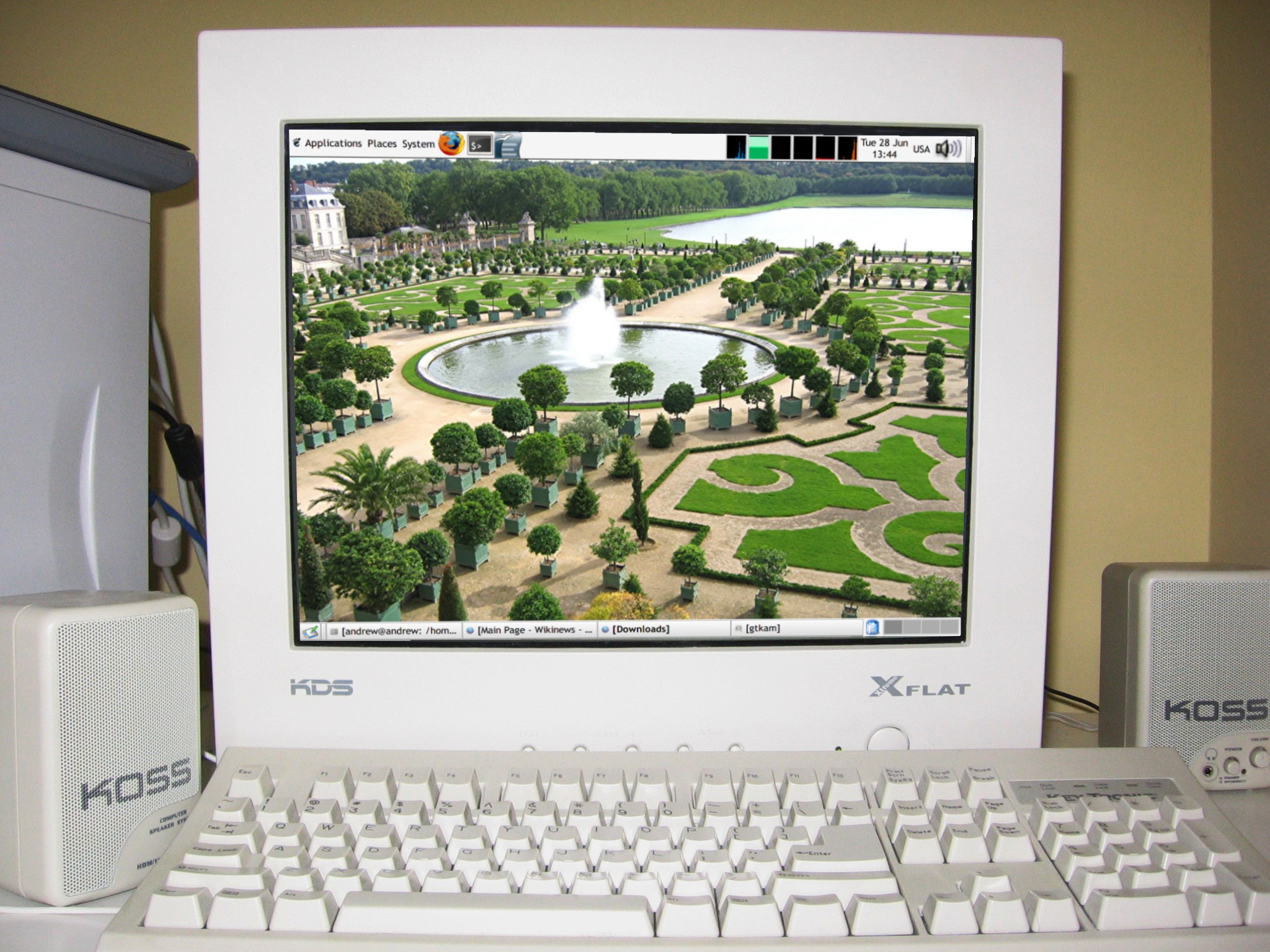
A computer screen is an output, since it converts information from the computer into information you see on the screen.


Another output in this picture is the set of speakers, since they convert bits and bytes into sound.


Tomorrow: Keyboard

Tuesday, December 29, 2009

Byte

The byte (pronounced "bite") is a grouping of 8 bits that forms a meaningful piece of information for a computer to use.  For a computer, a byte is like a word made up of bits.


Example
The ASCII system (pronounced "ask ee") describes how to convert bytes to letters.  A few examples:
A is 01000001
B is 01000010
. is 00101110
Byte is 01000010 01111001 01110100 01100101


Tomorrow: Interface