Welcome

If this is your first visit to Tech in English, click here to start your introduction to the world of computers!
Showing posts with label interface. Show all posts

Tuesday, January 26, 2010

Earlier Topics Revisited

Now that you are more familiar with some of the terminology and functions related to computers, let's go back and elaborate on some earlier topics:


  • Bits and bytes: these are the building blocks of software, such as programs, applications, and operating systems.
  • Interface, input, and output: things like keyboards, mouses, and computer screens are interfaces.  So are operating systems (connect hardware to software) and (new term) GUIs (Graphical User Interfaces), which translate text commands into pictures.  GUIs are responsible for clickable buttons, file icons, and menus.
  • Keyboard: by now, you know how to type capital and lowercase letters, numbers, symbols, and accents using keyboard modifier keys.
  • Program and application: you know about programs such as web browsers (Internet Explorer, Firefox, Safari) and word processors (Microsoft Word).  You also know that programs are contained in windows, and you know how to close, minimize, and maximize windows.
  • The Internet: connects computers so they can exchange files.  The most common way to access the Internet is through a web browser, where you can see files (web sites) residing on other computers.
  • Menus: the File menu has options for opening new files and saving or closing current ones, while the Edit menu has options for editing the text or some other aspect inside of the current file.
  • Media: different kinds of files that are usually meant for entertainment (consider the term "the media industry"), commonly video, picture, and music files.
  • Files and Extensions: different kinds of files are represented by different endings to their names: .doc, .txt, .jpg, .mp3, etc.
Hopefully this list connects some of the terms discussed earlier and provides a broader picture of the way computers work.

Next Up: Upload and Download

Thursday, January 7, 2010

Operating System

An operating system is an application (piece of software) that acts as an interface between the computer's hardware and other applications on the computer.  It is also responsible for coordinating what happens when the computer turns on and off.  While it is possible to have two or more operating systems on a single computer, most computers only have one.


Examples
The two most popular operating systems are Microsoft Windows (XP, Vista, and 7)


 and 


Apple Mac OS X (Tiger, Leopard, and Snow Leopard).


A third operating system that is gaining popularity is called Linux, and it comes in widely varying varieties, called "distributions."  The most popular distribution is called Ubuntu (pronounced "oo-boon-two").  Ubuntu is the distribution most similar to Windows and Mac OS X, while other distributions are much more complicated to run, and are mainly used by computer programmers and other people who like to tinker with computers.


Tomorrow: The Internet!

Sunday, January 3, 2010

Mouse and Trackpad

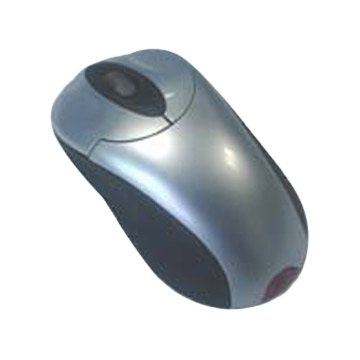
A mouse is an input that controls a pointer on your computer screen.  Moving the mouse moves the pointer, and clicking the mouse changes the "focus" of the computer to the location of the pointer.  This change can be to

  • type in a different part of an email, report, or letter
  • change from one application (or computer program) to another
  • click on a button that performs an action (such as to click "shut down" to turn off the computer)
  • click on a button that opens up a menu (such as to click "File" to open the menu, then "Save" to save the file)
  • or other, more nuanced actions
As computers have developed, manufacturers have tried to clarify the labels on buttons and make the actions that clicking the mouse performs more straightforward.


On some mouses (yes, the plural of "mouse" is "mouses," although "mice" is OK as well), there are two or more buttons, usually referred to as "left," "right," and sometimes "center."  The left button performs the actions described above, while the right and center buttons perform "secondary" actions.  Experiment with your own two-or-more-button mouse to discover which actions are triggered by the right and center buttons.


Laptops (portable computers) do not use ordinary mouses, since it is inconvenient to keep track of the computer and the mouse while traveling.  Instead, they use trackpads, which serve the same purpose as mouses do yet are built in to the laptops.  Instead of moving the mouse to move the pointer, you slide your finger along the surface of the trackpad.  Most trackpads have a button (or buttons) to click, just like a mouse.  In addition, though, newer trackpads will often "click" when you tap your finger on the trackpad surface instead of the mouse.  This allows you to move the mouse and click without looking down at the trackpad to make sure you are touching the right surface.


Example
A two-button mouse


A trackpad on a laptop


Tomorrow: Program and Application

Saturday, January 2, 2010

Keyboard

A keyboard is an input that allows you to input letters, numbers, and symbols into a computer. It also has special keys called "modifier keys" such as Shift, Control (or ctrl), Alternate (or alt), Function (fn), Command (z) or Apple ().  These keys do not produce letters or symbols when you push them.  Rather, they change what happens when you push other keys at the same time.

  • The Shift key changes lowercase letter keys to capital letter keys, and changes number keys to symbol keys.  For example, pressing the A key gives "a," but pressing shift and A gives "A."
  • On a Windows computer (Dell, HP, Toshiba, Sony), the Control key, in combination with another key, can perform an action, similar to the "function keys" below.  For example, pushing Control and s at the same time will save your current work on the computer.  Control and p will print the current page.
  • On an Apple computer, the Control key is not used often.
  • The alt or option keys change both letters and numbers to other characters.  For example, pressing option and s gives "ß," or option and t gives "†."
  • The fn key is not used often.

Keyboards also have "function keys," which are usually in the row above the number keys.  Function keys are labeled F1 through F12, and when you push them, they have the computer perform a certain action (other than typing a letter).  Finally, the Escape key (esc) can do different things depending on the particular computer and keyboard.


Example

The Apple Keyboard

Notice the shift, fn, control, alt/option, and command "modifier" keys in the lower-left corner.  Also notice the "function" keys on the top row, some of which are labeled with their intended "actions," or functions.


Tomorrow: Mouse and Trackpad

Friday, January 1, 2010

Output

An output is an interface that converts bits and bytes from a computer into information that makes sense to people.  Output can also refer to the bits and bytes themselves, or to the information given by the output.


Example
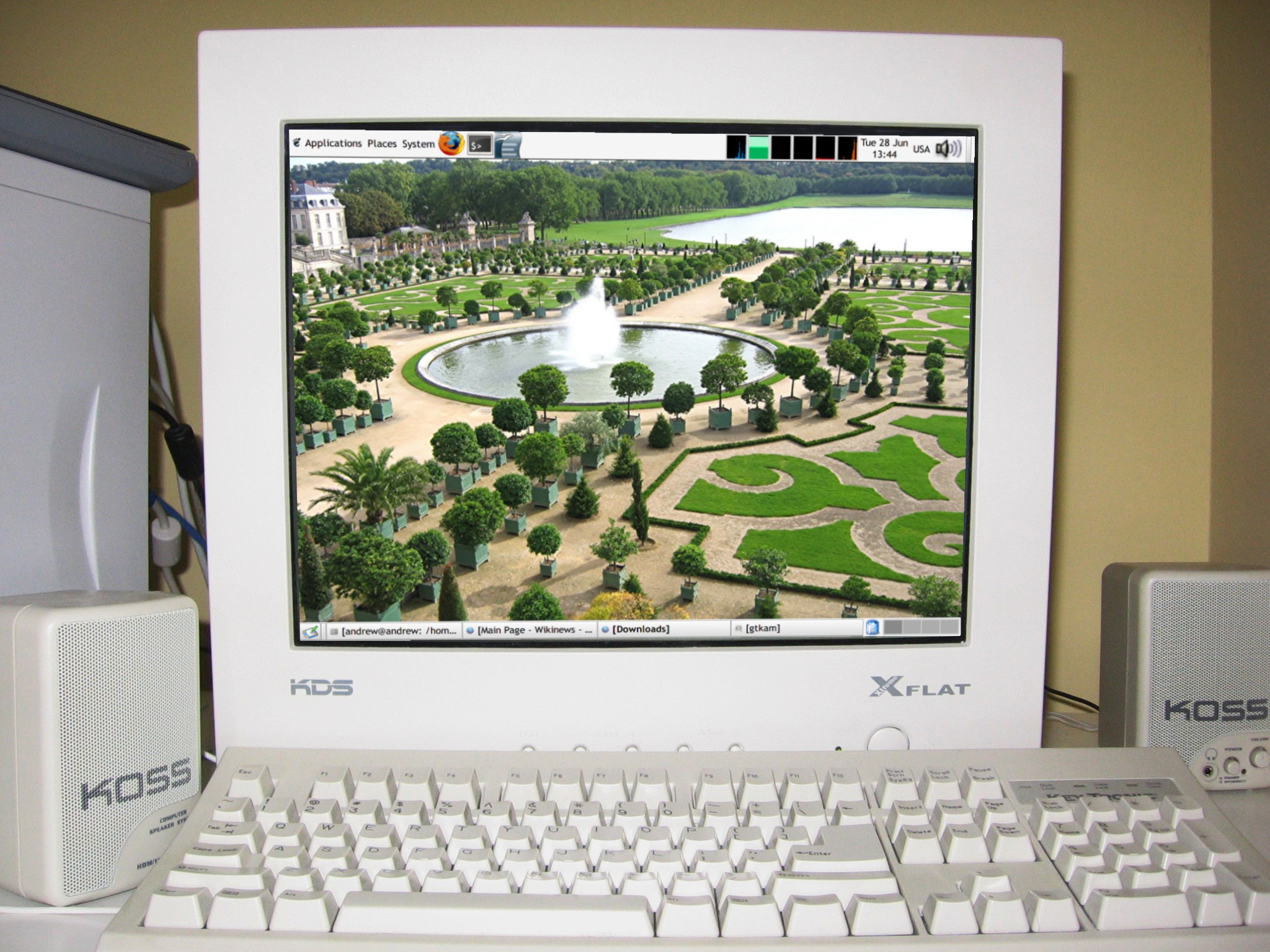
A computer screen is an output, since it converts information from the computer into information you see on the screen.


Another output in this picture is the set of speakers, since they convert bits and bytes into sound.


Tomorrow: Keyboard

Thursday, December 31, 2009

Input

An input is an interface that converts your actions into bits and bytes (information that the computer can use).  Input can also mean the action performed on an input or the information given by the input.


Example
A keyboard is an input since you can type on it and the computer receives information about which keys you have typed.


The bits and bytes representing the letters you type are also called inputs.
Another input is a camera connected to the computer


The bits and bytes that the computer receives from the camera is also an input.


Tomorrow: Output

Wednesday, December 30, 2009

Interface

An interface is what allows people to interact with computers.  Any "bridge" between the computer and the person using it is an interface.


Example
The screen you are using now to read this sentence is an interface because it allows the computer to show you information it finds.


Tomorrow: Input