In order for the computer (or you) to know where a file or folder is on your computer, you need to know (or be able to find) its file path. The file path describes how to get to the location you're looking at or referring to by listing which folders you need to open to get to it. The first location on a file path is the drive that the file is stored on. From there, each item is the next folder you need to open up to get one step closer to the file. In most cases, though, the file path doesn't list a few folders at the beginning of the actual path. Instead, the path starts with the "user" folder, which contains all of the files that you (the user) normally have access to. If you spend some time "wandering" through your computer's file structure, you will eventually figure out where certain files are and how the file hierarchy on your computer is structured. The following examples are from my computer, but your computer probably is almost the same as mine.
Examples
The complete file path of my desktop:
Macintosh HD/Users/Sam/Desktop
Normally, though, it is listed as
/Users/Sam/Desktop
If I wanted to really shorten the path, the tilde ~ stands for everything up to and including my user folder:
~/Desktop
All three of those paths point to the same location.
A file on my desktop might look like
/Users/Sam/Desktop/plaintext.txt
Try to find the file path to your desktop and to your Documents (or My Documents) folder.
Up Next: Navigating Your Computer: Part 3 (final part)
Thursday, February 11, 2010
Thursday, February 4, 2010
Navigating Your Computer: Part 1
When you consider that computers can hold thousands or millions of files, it seems necessary for there to be some sort of organization to help you (and the computer) find what you (and the computer) are looking for. The organizational structure used on modern computers is sometimes referred to as a file hierarchy. There are 3 main parts to the structure: files, folders, and drives.


You already are pretty well-acquainted with the concept of a file—it holds the information for a particular task, whether it's a song file, a word processing file, or an application (or executable) file.
If the entire organization were just files in a big virtual bucket, though, it would be almost impossible to find a particular file. Consider trying to scan a list of one million file names for that particular song (whose name you might not even correctly remember) you are looking for. Impossible! (or at least really really time-consuming.) Also, you would not be able to call two files the same name, which is a huge problem. What if I am working on two papers, and want to have a file for each called "Draft.doc," "Bibliography.doc," and "Final.doc?" The computer (and I) would not be able to tell the two sets of files apart, and bad stuff would happen. To avoid this problem, we use the concept of folders, or directories.
The analogy between computer folders and real folders is extremely direct: just as a file is like a piece of paper (or a few pieces stapled together), so too is a folder like the manila folder you use to keep a bunch of related papers together. Folders make organization on a computer so much easier because inside a folder, you can create another folder, and inside that one another, and so on almost indefinitely. Consequently, to continue my earlier example, if I have two papers to write, I can create a folder called "First Paper" and a folder called "Second Paper." I can then put the files for the respective papers inside their respective folders. Specifically, I can have a file called "Draft.doc" that's inside the folder "First Paper," and a different file called "Draft.doc" inside "Second Paper." Both the computer and I can now tell the two files apart because the "Draft.doc" inside "First Paper" is in a different folder than the one in "Second Paper." (Note: directory and folder are completely synonymous.)
For most intents and purposes, files and folders are sufficient to keep a computer organized. However, there are some times when things get a little bit more complicated. For example, if you have a digital camera, you probably will at some point want to connect it to your computer so you can save the pictures you took and email them to friends and family. To do that, you need to be able to tell your computer to copy the files from the camera onto the computer's hard drive (remember, that's where the computer's files and folders are stored). However, the pictures are on the camera, not on the computer, so you won't be able to find it just looking through the folders and files on your computer. To resolve this problem, we use the concept of drives or disks (again, synonymous).
Most computers today have one hard drive that stores all of the computer's files, folders, and applications. Other devices have hard drives as well: cameras, mp3 players and iPods, cell phones, and other similar devices. When you connect one of these to your computer, the computer recognizes it as a new hard drive. To continue the files/folders analogy, your computer's hard drive is like your desk, with all of the papers and folders that you normally use on it. Every so often, though, the office mail gets delivered in a box that the mailman leaves on your desk. Inside the box are more files and folders, similar to the ones that are on your desk. Even the box itself is on your desk. But it's clear that the stuff in the box is separate from the stuff on your desk. In the same way, your computer presents all of the files and folders on its own hard drive separately from the stuff in a different drive. Another way to see the difference between folders and drives is that different folders are on the same piece of hardware, but different drives are on different pieces of hardware.
Examples
On an Apple computer, the icons used to represent files look like this:

Depending on the file's extension (type), there might be a picture on the icon that tells you what type of file it is.
Folders look like this:

Some folders have special pictures on them that tell you what kinds of files are in them. For example, the "Applications" folder has an "A" on the icon, and the "System" folder has an "X" (for Mac OS X). On Windows computers, the "Desktop" folder looks like, well, a desktop.
Drives can have different icons depending on what kind of drive, and on whether you're on a Windows or Apple computer, but they usually look something like one of these two:

Notice how the first drive is called "Macintosh HD." This is the computer's own hard drive (HD stands for hard drive). The one called "Music HD" is a separate drive that has music files on it. Different kinds of drives can have different "labels" on the icons, but those two are pretty generic.
Up Next: Navigating Your Computer: Part 2

Monday, February 1, 2010
Upload and Download
As you know by now, the Internet allows files to be exchanged between computers. When you are just viewing webpages, the contents of the page are only temporarily saved on your computer (just for as long as you are viewing the page). Web browsers can only read certain file types, namely those with the .html extension (HTML files) and certain picture files like .jpg, .gif, and a few others. There are other file types that you might encounter on the Internet that you want to see, though, such as Word files, music files, etc. that the browser cannot open. In order to open them, you need to transfer a copy of the file from the Internet to your computer, and open it with an application on your computer. The process by which files are transfered from the Internet to a computer is called downloading. Once a file is downloaded, it can be treated just like any other file you created yourself on your computer. Two of the most common sources for downloads are emails and the iTunes music store. Downloading is an amazing process—I can write a novel on my computer and send it (attached to an email) anywhere in the world and the email's recipient could be reading it within seconds. With great power, though, comes great responsibility: while many downloads are regular, harmless files, there are a large number of files that contain viruses and other programs that can harm your computer or steal your information. These files are often disguised as regular files, so it is important to use caution when you click on a link to download a file. Only click on links that appear on web sites that you trust!!! A good rule of thumb is that if you don't expect to have to download a file, don't download any files. Also, only download attachments from emails if you know the person who sent the email to you. Many email services have great software that tries to filter out messages that have viruses attached to them, but none of them is perfect, so it's always best to err on the side of caution.
A much less hazardous process than downloading is the reverse: uploading. When you want to share a file with someone (or the whole Internet), you need to upload it to an email or web site so that others can download it to their computers.
Examples
When you buy a song from iTunes, you have to download it in order to play it on your computer.
A file that contains a virus may appear as simple as this (this is not a real virus, or even a real link):
Congratulations! You just won $100!!!!! click here to claim your prize.
Even though you might be flattered at the thought of winning $100, since you did not log on to the Internet today to claim a lottery prize, you are better off not clicking the link.
Most email programs have a button that says "Attach a file" or has a picture of a paper clip on it. Clicking that will let you choose which file you want to attach, and when you send the message, your file will be uploaded to the Internet.
Up Next: Navigating through your computer
Tuesday, January 26, 2010
Earlier Topics Revisited
Now that you are more familiar with some of the terminology and functions related to computers, let's go back and elaborate on some earlier topics:
- Bits and bytes: these are the building blocks of software, such as programs, applications, and operating systems.
- Interface, input, and output: things like keyboards, mouses, and computer screens are interfaces. So are operating systems (connect hardware to software) and (new term) GUIs (Graphical User Interfaces), which translate text commands into pictures. GUIs are responsible for clickable buttons, file icons, and menus.
- Keyboard: by now, you know how to type capital and lowercase letters, numbers, symbols, and accents using keyboard modifier keys.
- Program and application: you know about programs such as web browsers (Internet Explorer, Firefox, Safari) and word processors (Microsoft Word). You also know that programs are contained in windows, and you know how to close, minimize, and maximize windows.
- The Internet: connects computers so they can exchange files. The most common way to access the Internet is through a web browser, where you can see files (web sites) residing on other computers.
- Menus: the File menu has options for opening new files and saving or closing current ones, while the Edit menu has options for editing the text or some other aspect inside of the current file.
- Media: different kinds of files that are usually meant for entertainment (consider the term "the media industry"), commonly video, picture, and music files.
- Files and Extensions: different kinds of files are represented by different endings to their names: .doc, .txt, .jpg, .mp3, etc.
Hopefully this list connects some of the terms discussed earlier and provides a broader picture of the way computers work.
Next Up: Upload and Download
Thursday, January 21, 2010
Files and Extensions
A file is a set of computer code (software) that contains all of the information necessary to complete a particular task. There are different kinds (or types) of files, denoted by different extensions, which consist of a period followed by (usually) three letters that abbreviate the kind of the file.
Examples
Applications are files, and they are denoted by the .app extension on Mac OS X, and by the .exe extension on Windows (.exe stands for "executable file"). Other common files are Microsoft Word files, which contain whatever you wrote on Microsoft word. These have the .doc and .docx extension (both stand for "document," but the x in .docx is to distinguish the newer version of Word from previous ones). Here are some others:
Examples
Applications are files, and they are denoted by the .app extension on Mac OS X, and by the .exe extension on Windows (.exe stands for "executable file"). Other common files are Microsoft Word files, which contain whatever you wrote on Microsoft word. These have the .doc and .docx extension (both stand for "document," but the x in .docx is to distinguish the newer version of Word from previous ones). Here are some others:
- Microsoft Excel: .xls and .xlsx
- Microsoft PowerPoint: .ppt and .pptx
- MP3 and AAC (music files): .mp3 and .aac
- MPEG (video files): .m4p and .mp4
- Web Pages: .htm and .html
- Plain Text (i.e. without formatting like color, size, font): .txt
- JPEG, GIF, TIFF, RAW (images/pictures): .jpg, .gif, .tif, .raw
- PDF (Portable Document Format): .pdf
Tomorrow: Revisit some previous topics with our new tech-lingo
Wednesday, January 20, 2010
Media
Media is any sort of information that can be read, watched, or heard by people. Common non-electronic media include books, newspapers, voices, musical instruments. Digital media refers to media that is represented as a computer file (in bits and bytes). Media in this sense is different from media in the sense that writing and television are media for delivering information, although the line becomes blurred with the common reference to hard drives as "storage media," so-called because they are a medium that stores information. However, we are not talking about that sort of media, but rather the media that can be stored on a hard drive.
Examples
Common digital media include music files (mp3's), video files, e-books, email, and digital photographs.
Tomorrow: Files and Extensions
Examples
Common digital media include music files (mp3's), video files, e-books, email, and digital photographs.
Tomorrow: Files and Extensions
Tuesday, January 19, 2010
Some Technical Jargon Explained
In order to more efficiently explain tech concepts, I have decided to list a short reference of jargon that will make life a lot easier in the future.
- click: click the mouse. move the mouse so the pointer is covering whatever you want to click on.
- URL: the web address for a webpage. it often starts with http://www. For example: http://www.google.com or http://www.techinenglish.blogspot.com.
- Hyperlink (or just "link"): text that you can click on to go to a particular webpage. the text is often just the URL of the webpage, but can also be something like Click Here. Links normally appear in underlined blue until you click on them, when they turn underlined purple.
- browser: a program that lets you view websites
- word processor: a program that lets you create and edit text documents
- address bar: the text field at the top of most browser windows that tells you what the URL of the webpage you are viewing is and lets you type in a new one. this is the main way to go to new web sites (i.e. ones you aren't already viewing).
- push "tab," "space," etc.: certain keys on the keyboard aren't labeled with single letters, but rather words. these will be in quotes.
- type "words:" type those words in quotes into the specified text field.
- go to
: type the URL in the brackets into your browser's address bar and push "enter" or "return." (either will do). - file: a collection of bits and bytes that run on a particular program and contain some specified data.
- hard drive: hardware where files are stored indefinitely (until you delete a file). when you "save" a file, its contents are "written" on the hard drive.
- RAM: acronym for "Random Access Memory," which is where the computer can temporarily store files necessary for programs to run. RAM gets erased whenever a computer is shut off. this is why computers don't remember what programs you were using right before you shut them off.
- memory: informally, the number of bits or bytes that can be stored on a hard drive. technically, the amount of RAM a computer has. either way, normal amounts of memory range from single bits or bytes to kilobits or kilobytes (Kb or KB), which are 1000 bits or bytes, to mega- and gigabits and bytes (Mb, MB, Gb, GB, respectively), which are 1000 Kb, KB, Mb, or MB, respectively. Recently, the terabyte and petabyte have come into use, representing 1000 GB and 1000 TB, respectively.
Tomorrow: Media
Monday, January 18, 2010
The Edit Menu
The Edit menu contains commands that let you, well, edit whatever is on the window you are using. By now, you are already familiar with the Cut, Copy, and Paste commands that are present on the Edit menu. Other commands that sometimes appear on the Edit menu are:

Tomorrow: Some technical jargon explained
- Undo: tells the computer to disregard your most recent action in the application you are using. It is most useful when you are editing text, and you accidentally delete something you didn't intend to. You can simply click "Undo," and the text will reappear. Important: most programs will not let you undo the "Save" action or any action that happened before you saved. So if you delete text unintentionally, then save the file, you will most likely not be able to undo your deletion.
- Redo: tells the computer to undo your most recent "Undo," so you revert to what you started with before you clicked "Undo." Important: the "Redo" option is only available immediately after you click "Undo." As soon as you continue typing or make any other change to the file you are working on, the "Redo" option will fade and you will be unable to revert to before your "Undo."
- Delete: pretty self-explanatory, this option eliminates whatever is selected from the file.
- Select All: also self-explanatory, this option will select everything in the current file. This is useful if you want to change the font style of a word processing document, for example. Depending on the program, and on where the mouse cursor is or what is already selected, this may only select everything in the current text field, or select only images, or only text. Experiment to figure out what it does in the programs you use most often.
- Find: opens a small window called a "dialog box" that has a text field where you can type in a word, part of a word, number, etc., and the computer will find all instances of whatever you typed in wherever it appears in the current window.
There are other commands that appear only on certain applications' Edit menus. Experiment to see what they do!
Example
The Edit menu on my web browser. It is right next the File menu, where it resides on almost every other application as well.

Tomorrow: Some technical jargon explained
Sunday, January 17, 2010
Select and Highlight
When you tell the computer to perform an action, especially through one of the menus (like the File or Edit menu), it is important for the computer to know what part of the screen to perform the action on. Selecting and highlighting allow you to tell the computer what to focus on.
In general, to select (or highlight--used interchangeably for text) text in a word processor or some other application, move the mouse cursor to the beginning of the passage you want to select, then click and hold the mouse button, and drag the cursor to the end of the passage you want to select (while still holding down the mouse button). The normal color that indicates highlighting is pale blue, so you will see the text you have selected surrounded by a pale blue box. Now, you can Copy or Cut the text and the computer will know which passage you are referring to.
Other things on the screen can be selected, such as buttons that say "OK," "Cancel," "Yes," or "No." When these are selected with either a shadow or a blue fill, if you push the "enter" or "return" key on your keyboard you will achieve the same effect as simply clicking on the button with your mouse pointer.
If the button is selected with a black or blue outline, you can "push" the button by pushing the "space" key on your keyboard. If there is more than one button on the same window, you can cycle through selecting each one by pushing the "tab" key on your keyboard.
Finally, the third common thing that can be selected is text boxes. These are most common on the Internet, where they appear as the places where you type in usernames and passwords to log in to websites, or to type in an address on an online order form. Similarly to buttons, to cycle through multiple text boxes (also called "text fields"), simply push the "tab" key on your keyboard.
There are other things that can be selected, but these are often variations on the above three categories (for example, checkboxes and "radio buttons," which are similar to checkboxes, except only one can be selected at a time)
Examples
These pictures are from an Apple computer. People using other brands of computer (and consequently the Windows or Linux operating system) will see slightly different colors and styles of selecting things.
Highlighted text:

A text field with a username typed into it (notice how it's outlined in light blue):


In general, to select (or highlight--used interchangeably for text) text in a word processor or some other application, move the mouse cursor to the beginning of the passage you want to select, then click and hold the mouse button, and drag the cursor to the end of the passage you want to select (while still holding down the mouse button). The normal color that indicates highlighting is pale blue, so you will see the text you have selected surrounded by a pale blue box. Now, you can Copy or Cut the text and the computer will know which passage you are referring to.
Other things on the screen can be selected, such as buttons that say "OK," "Cancel," "Yes," or "No." When these are selected with either a shadow or a blue fill, if you push the "enter" or "return" key on your keyboard you will achieve the same effect as simply clicking on the button with your mouse pointer.
If the button is selected with a black or blue outline, you can "push" the button by pushing the "space" key on your keyboard. If there is more than one button on the same window, you can cycle through selecting each one by pushing the "tab" key on your keyboard.
Finally, the third common thing that can be selected is text boxes. These are most common on the Internet, where they appear as the places where you type in usernames and passwords to log in to websites, or to type in an address on an online order form. Similarly to buttons, to cycle through multiple text boxes (also called "text fields"), simply push the "tab" key on your keyboard.
There are other things that can be selected, but these are often variations on the above three categories (for example, checkboxes and "radio buttons," which are similar to checkboxes, except only one can be selected at a time)
Examples
These pictures are from an Apple computer. People using other brands of computer (and consequently the Windows or Linux operating system) will see slightly different colors and styles of selecting things.
Highlighted text:

A text field with a username typed into it (notice how it's outlined in light blue):

Also, notice the empty checkbox next to "Save this Online ID" right under the text field. When this box is selected, pushing "space" will cause it to switch between checked and unchecked.
Buttons and other things that can be selected:

Things to look for:
- The "Print" button is a button that is filled in blue. Pushing the "enter" or "return" key would let the computer know to print the page.
- The "Cancel" button is outlined in blue. Pushing the "space" key would tell the computer to cancel the command to print. Pushing "tab" will make the blue outline "jump" along all of the different selectable objects on the screen, including buttons, checkboxes, radio buttons, etc.
- The empty checkbox next to "Reverse Page Orientation" (towards the bottom of the window), and the checked checkbox next to "Collated."
- The two radio buttons next to the "Pages:" option, asking to print all of the pages, or only a given range of pages. It is impossible to select both at the same time—clicking the empty radio button makes the dot in the other one "move" to the one you clicked on.
- The different "Drop-down" menus that appear as buttons with a double arrow pointing up and down (such as the one that says "Layout." When you click on these buttons, a small menu appears that lets you choose different options.
- The text fields asking for how many copies and which pages to print.
Wow, that was a long post! Tomorrow's will be shorter: the Edit menu
Wednesday, January 13, 2010
Cut, Copy, and Paste
One of the reasons that computers are better than typewriters is that computers can copy bits and bytes extremely quickly.
Cut, copy, and paste are three commands you can get to from the "Edit" menu (post forthcoming), located next to the File menu. These three commands make use of the computer's "clipboard," a place that can temporarily save text (words, numbers, and symbols), images (pictures and icons), and in some cases other sorts of information. Copying information puts it into the clipboard (for future use). Cutting information puts it into the clipboard and deletes it from its original location. Pasting information takes whatever is on the clipboard and inserts it where your cursor is. (You can move the cursor's location by clicking the mouse pointer where you want to paste the information).
When you copy or cut, any information that was on the clipboard is erased from the clipboard, so it is not possible to copy (or cut) two or more different things at the same time.
The cut command is identical to copying then deleting—it's just faster.
Examples
If I am reading a web page and notice a great quotation that I could use in a report I'm writing, I can copy the quotation from the webpage and paste it into a word processing application (like Microsoft Word or Apple's Pages).
If I am trying to arrange the paragraphs on my report, I can cut a paragraph from its original location (thereby deleting it), and paste it where it belongs.
Tomorrow: Select and Highlight
Cut, copy, and paste are three commands you can get to from the "Edit" menu (post forthcoming), located next to the File menu. These three commands make use of the computer's "clipboard," a place that can temporarily save text (words, numbers, and symbols), images (pictures and icons), and in some cases other sorts of information. Copying information puts it into the clipboard (for future use). Cutting information puts it into the clipboard and deletes it from its original location. Pasting information takes whatever is on the clipboard and inserts it where your cursor is. (You can move the cursor's location by clicking the mouse pointer where you want to paste the information).
When you copy or cut, any information that was on the clipboard is erased from the clipboard, so it is not possible to copy (or cut) two or more different things at the same time.
The cut command is identical to copying then deleting—it's just faster.
Examples
If I am reading a web page and notice a great quotation that I could use in a report I'm writing, I can copy the quotation from the webpage and paste it into a word processing application (like Microsoft Word or Apple's Pages).
If I am trying to arrange the paragraphs on my report, I can cut a paragraph from its original location (thereby deleting it), and paste it where it belongs.
Tomorrow: Select and Highlight
Tuesday, January 12, 2010
Missed Days
Greetings all,
My sincere apologies for the two missed days of Technology in English. I will resume my normal schedule tomorrow.
Sam
My sincere apologies for the two missed days of Technology in English. I will resume my normal schedule tomorrow.
Sam
Sunday, January 10, 2010
Windows and Tabs
A window is part of an application that takes up space on the computer screen. Windows can be moved around the screen, revealing other parts of the computer screen that were previously hidden by the window. Windows can be thought of as pieces of paper lying on a table. Each page has some information on it, and if you have a lot of pages on the table, you can stack them up so you only see the topmost page, or spread them out so you can see different parts of different pages at the same time.
Unlike physical pieces of paper, windows can be resized to take up more or less space. They can also be "minimized," where they are temporarily hidden from view, "maximized," where they take up the entire screen, and "closed," where the page and its contents are removed from view. (Recall that "Close" is a command in the File menu). Also, computers are designed only to focus on one window at a time. Unfocused (or unselected) windows will usually have faded colors, whereas the one in focus will have normal colors. This is to ensure that, for example, when you choose "Close" from the File menu, you close the window that you intend to, namely the one in focus.
On computers running the Microsoft Windows operating system, the three buttons for minimizing, maximizing, and closing windows are in the upper-right corner of each window. On computers running Mac OS X, the buttons are in the upper-left corner of each window. Be aware that on Macs, the green "maximize" button does not actually expand the window to occupy the entire screen. Rather, it resizes the window to "fit" whatever the window contains, so there is no blank space surrounding a photograph being viewed, for example.
Some windows, on both operating systems, are missing some of the "size control" buttons. Usually, the "maximize" button will be the one missing because it would not make sense to maximize those windows.
A tab is a relatively new feature introduced to web browsers (Safari, Internet Explorer, Firefox, etc.) to help organize the application when people want to have many web pages open at the same time. Instead of having one window for each different webpage, people can put multiple webpages in the same window by having each webpage be a different tab on that window. At first glance, this feature may seem useless, but its usefulness shows when, for example, you have five different webpages that you want to minimize or close. If they are in different windows, you would have to close each one individually, but if they are five tabs all in the same window, you only have to close one window instead of five.
Examples
The three "size control" buttons on a computer running Mac OS X:


Unlike physical pieces of paper, windows can be resized to take up more or less space. They can also be "minimized," where they are temporarily hidden from view, "maximized," where they take up the entire screen, and "closed," where the page and its contents are removed from view. (Recall that "Close" is a command in the File menu). Also, computers are designed only to focus on one window at a time. Unfocused (or unselected) windows will usually have faded colors, whereas the one in focus will have normal colors. This is to ensure that, for example, when you choose "Close" from the File menu, you close the window that you intend to, namely the one in focus.
On computers running the Microsoft Windows operating system, the three buttons for minimizing, maximizing, and closing windows are in the upper-right corner of each window. On computers running Mac OS X, the buttons are in the upper-left corner of each window. Be aware that on Macs, the green "maximize" button does not actually expand the window to occupy the entire screen. Rather, it resizes the window to "fit" whatever the window contains, so there is no blank space surrounding a photograph being viewed, for example.
Some windows, on both operating systems, are missing some of the "size control" buttons. Usually, the "maximize" button will be the one missing because it would not make sense to maximize those windows.
A tab is a relatively new feature introduced to web browsers (Safari, Internet Explorer, Firefox, etc.) to help organize the application when people want to have many web pages open at the same time. Instead of having one window for each different webpage, people can put multiple webpages in the same window by having each webpage be a different tab on that window. At first glance, this feature may seem useless, but its usefulness shows when, for example, you have five different webpages that you want to minimize or close. If they are in different windows, you would have to close each one individually, but if they are five tabs all in the same window, you only have to close one window instead of five.
Examples
The three "size control" buttons on a computer running Mac OS X:

And on a Windows computer:

Different tabs as they appear in the web browser Google Chrome:

Notice how only one tab can be "selected" or "focused" at once (in this case the "New York Times" tab).
Tomorrow: Cut, Copy, and Paste
Saturday, January 9, 2010
The File Menu
The File Menu is a list of actions that can be performed on whatever file you are working on. It is located at the top of the screen, almost in the top-left corner of the screen. You access this menu simply by clicking on the word "File." When the menu appears, you can then click on whichever command you want. Although the exact commands listed on the File menu vary, here are some common commands:
Also, some commands may be on the menu, but faded. This means that the command can not be used in whatever situation you are in.
Example
Here is a picture of a File menu from iTunes:

Notice the different "New" commands, the "Close Window" command, and the "Page Setup…" and "Print…" commands. Also, note how the "Get Info" and "Show in Finder" commands are faded. This is because in order to use these commands, I have to have a particular song selected (so I can get its info or show it in the Finder). Since I don't have a song selected, I can't use the commands.
Also, notice that the word "File" is highlighted—this indicates which menu you are looking at. If you were looking at a different menu, say the "Edit" menu, then the word "Edit" would be highlighted.
Tomorrow: Windows and Tabs
- New: Lets you start a new task. Sometimes appears as "New Window," "New Document," "New Page," etc.
- Save: Lets you save your work on your computer.
- Open: Lets you open a file that you had previously saved.
- Page setup: Lets you control the layout of the page, such as Portrait/Landscape (vertical or horizontal), and if you want to zoom in our out, when you print your work.
- Print: Lets you print what you are working on.
- Close: Exits from whatever file you are working on.
- Quit (or Exit): Exits the application you are using. This is different from "Close" because it is possible to close a file but still have the application open (especially if you are working on more than one file at a time). On Apple computers, the "Quit" command is not in the File menu, but rather in the menu to the left of the "File" menu, which is labeled with the name of the application you are using (so in iTunes, it's the "iTunes" menu, in Word, it's the "Word" menu, etc.)
Also, some commands may be on the menu, but faded. This means that the command can not be used in whatever situation you are in.
Example
Here is a picture of a File menu from iTunes:

Also, notice that the word "File" is highlighted—this indicates which menu you are looking at. If you were looking at a different menu, say the "Edit" menu, then the word "Edit" would be highlighted.
Tomorrow: Windows and Tabs
Friday, January 8, 2010
The Internet
The Internet is the main tool people use to connect computers to each other to share information. Originally, the only thing that could be shared over the Internet was text (words, numbers, and symbols). Eventually, people developed ways to convert pictures (and later, videos) to bits and bytes so that they, too, could be shared over the Internet.
The most common use of the Internet is to view Web pages, which are files stored on other people's computers. To view Web pages, you need a Web browser (such as Internet Explorer, featured earlier, or Safari, Firefox, or Chrome), which can send and receive information to and from other computers. Browsers also convert Web pages from the programming language used on the Internet to words, pictures, and videos that make sense to the average person (i.e. you).
The Internet is also used to send files to specific people through e-mail (short for "electronic mail"). Modern email can send text as well as other files such as picture and video files.
Finally, within the last decade, the Internet has developed the ability to let people watch videos without sending the entire file (often consisting of millions of bytes) to their computers at the same time. This lets people watch full TV shows without having to worry about running out of space to store the files on their computers.
There is only one Internet, but many large businesses (and government agencies) have an "intranet," which is the same technology as the Internet (connecting computers), but available only to people who work at the company.
Examples
One Web page (also "webpage") is the one you are reading right now: Technology in English. Another more popular webpage is Google, which allows you to search for other webpages.
Popular email services include GMail (by Google), Hotmail and Windows Live Mail (by Microsoft), Yahoo! Mail (by Yahoo!), and AOL Mail (by America Online).
You can watch videos online on YouTube or Hulu.
Tomorrow: The File Menu
The most common use of the Internet is to view Web pages, which are files stored on other people's computers. To view Web pages, you need a Web browser (such as Internet Explorer, featured earlier, or Safari, Firefox, or Chrome), which can send and receive information to and from other computers. Browsers also convert Web pages from the programming language used on the Internet to words, pictures, and videos that make sense to the average person (i.e. you).
The Internet is also used to send files to specific people through e-mail (short for "electronic mail"). Modern email can send text as well as other files such as picture and video files.
Finally, within the last decade, the Internet has developed the ability to let people watch videos without sending the entire file (often consisting of millions of bytes) to their computers at the same time. This lets people watch full TV shows without having to worry about running out of space to store the files on their computers.
There is only one Internet, but many large businesses (and government agencies) have an "intranet," which is the same technology as the Internet (connecting computers), but available only to people who work at the company.
Examples
One Web page (also "webpage") is the one you are reading right now: Technology in English. Another more popular webpage is Google, which allows you to search for other webpages.
Popular email services include GMail (by Google), Hotmail and Windows Live Mail (by Microsoft), Yahoo! Mail (by Yahoo!), and AOL Mail (by America Online).
You can watch videos online on YouTube or Hulu.
Tomorrow: The File Menu
Thursday, January 7, 2010
Operating System
An operating system is an application (piece of software) that acts as an interface between the computer's hardware and other applications on the computer. It is also responsible for coordinating what happens when the computer turns on and off. While it is possible to have two or more operating systems on a single computer, most computers only have one.
Examples
The two most popular operating systems are Microsoft Windows (XP, Vista, and 7)

and

Apple Mac OS X (Tiger, Leopard, and Snow Leopard).
A third operating system that is gaining popularity is called Linux, and it comes in widely varying varieties, called "distributions." The most popular distribution is called Ubuntu (pronounced "oo-boon-two"). Ubuntu is the distribution most similar to Windows and Mac OS X, while other distributions are much more complicated to run, and are mainly used by computer programmers and other people who like to tinker with computers.
Tomorrow: The Internet!
Examples
The two most popular operating systems are Microsoft Windows (XP, Vista, and 7)

and

Apple Mac OS X (Tiger, Leopard, and Snow Leopard).
A third operating system that is gaining popularity is called Linux, and it comes in widely varying varieties, called "distributions." The most popular distribution is called Ubuntu (pronounced "oo-boon-two"). Ubuntu is the distribution most similar to Windows and Mac OS X, while other distributions are much more complicated to run, and are mainly used by computer programmers and other people who like to tinker with computers.
Tomorrow: The Internet!
Wednesday, January 6, 2010
Software
Software is the non-physical part of the computer that is encoded in bits and bytes, rather than hardware, which is the physical part.
Example
Programs and applications are pieces of software, since even though they are sold on CDs (for example), you don't buy it for the CD, you buy it for the information on the CD.
Tomorrow: Operating System
Example
Programs and applications are pieces of software, since even though they are sold on CDs (for example), you don't buy it for the CD, you buy it for the information on the CD.
Tomorrow: Operating System
Tuesday, January 5, 2010
Hardware
Hardware is any piece of equipment that goes into running a computer. If you can touch it, and it is electronic, it is a piece of hardware.
Examples
Mouses and Keyboards are hardware. So are computer screens, CDs (compact discs), DVDs, wires, cellphones, TVs, DVD players, remote controls, and lots of other things.
Tomorrow: Software
Examples
Mouses and Keyboards are hardware. So are computer screens, CDs (compact discs), DVDs, wires, cellphones, TVs, DVD players, remote controls, and lots of other things.
Tomorrow: Software
Monday, January 4, 2010
Program and Application
A computer program or application is what allows people to perform tasks on the computer. Each application is intended to accomplish a specific task. Applications are sometimes free, sometimes cheap, and sometimes expensive. When you open an application, you can use its features, and when you are finished using it, you can save your work, and then quit the application to signal that you have finished using it for the time being.
Examples
 One popular application is Microsoft Word. This application is a word processor: it lets you type and read documents and letters.

Another application is Internet Explorer. This application is a web browser: it lets you enter web addresses and view web sites on the Internet.

A third application is iTunes. This application lets you organize and listen to music, movies, and TV shows on your computer. It also lets you buy new music, movies, and shows from the Internet, and transfer songs to an iPod.
Tomorrow: Hardware
Examples
 One popular application is Microsoft Word. This application is a word processor: it lets you type and read documents and letters.

Tomorrow: Hardware
Sunday, January 3, 2010
Mouse and Trackpad
A mouse is an input that controls a pointer on your computer screen. Moving the mouse moves the pointer, and clicking the mouse changes the "focus" of the computer to the location of the pointer. This change can be to
On some mouses (yes, the plural of "mouse" is "mouses," although "mice" is OK as well), there are two or more buttons, usually referred to as "left," "right," and sometimes "center." The left button performs the actions described above, while the right and center buttons perform "secondary" actions. Experiment with your own two-or-more-button mouse to discover which actions are triggered by the right and center buttons.
Laptops (portable computers) do not use ordinary mouses, since it is inconvenient to keep track of the computer and the mouse while traveling. Instead, they use trackpads, which serve the same purpose as mouses do yet are built in to the laptops. Instead of moving the mouse to move the pointer, you slide your finger along the surface of the trackpad. Most trackpads have a button (or buttons) to click, just like a mouse. In addition, though, newer trackpads will often "click" when you tap your finger on the trackpad surface instead of the mouse. This allows you to move the mouse and click without looking down at the trackpad to make sure you are touching the right surface.
Example
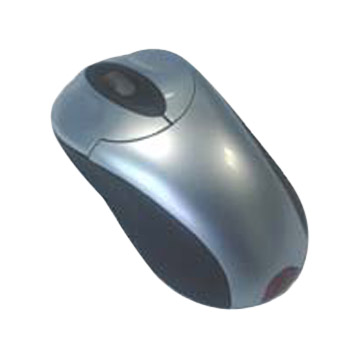
A two-button mouse

A trackpad on a laptop

Tomorrow: Program and Application
- type in a different part of an email, report, or letter
- change from one application (or computer program) to another
- click on a button that performs an action (such as to click "shut down" to turn off the computer)
- click on a button that opens up a menu (such as to click "File" to open the menu, then "Save" to save the file)
- or other, more nuanced actions
On some mouses (yes, the plural of "mouse" is "mouses," although "mice" is OK as well), there are two or more buttons, usually referred to as "left," "right," and sometimes "center." The left button performs the actions described above, while the right and center buttons perform "secondary" actions. Experiment with your own two-or-more-button mouse to discover which actions are triggered by the right and center buttons.
Laptops (portable computers) do not use ordinary mouses, since it is inconvenient to keep track of the computer and the mouse while traveling. Instead, they use trackpads, which serve the same purpose as mouses do yet are built in to the laptops. Instead of moving the mouse to move the pointer, you slide your finger along the surface of the trackpad. Most trackpads have a button (or buttons) to click, just like a mouse. In addition, though, newer trackpads will often "click" when you tap your finger on the trackpad surface instead of the mouse. This allows you to move the mouse and click without looking down at the trackpad to make sure you are touching the right surface.
Example
A two-button mouse
A trackpad on a laptop

Tomorrow: Program and Application
Saturday, January 2, 2010
Keyboard
A keyboard is an input that allows you to input letters, numbers, and symbols into a computer. It also has special keys called "modifier keys" such as Shift, Control (or ctrl), Alternate (or alt), Function (fn), Command (z) or Apple (). These keys do not produce letters or symbols when you push them. Rather, they change what happens when you push other keys at the same time.
Keyboards also have "function keys," which are usually in the row above the number keys. Function keys are labeled F1 through F12, and when you push them, they have the computer perform a certain action (other than typing a letter). Finally, the Escape key (esc) can do different things depending on the particular computer and keyboard.
Example
The Apple Keyboard

Notice the shift, fn, control, alt/option, and command "modifier" keys in the lower-left corner. Also notice the "function" keys on the top row, some of which are labeled with their intended "actions," or functions.
Tomorrow: Mouse and Trackpad
- The Shift key changes lowercase letter keys to capital letter keys, and changes number keys to symbol keys. For example, pressing the A key gives "a," but pressing shift and A gives "A."
- On a Windows computer (Dell, HP, Toshiba, Sony), the Control key, in combination with another key, can perform an action, similar to the "function keys" below. For example, pushing Control and s at the same time will save your current work on the computer. Control and p will print the current page.
- On an Apple computer, the Control key is not used often.
- The alt or option keys change both letters and numbers to other characters. For example, pressing option and s gives "ß," or option and t gives "†."
- The fn key is not used often.
Keyboards also have "function keys," which are usually in the row above the number keys. Function keys are labeled F1 through F12, and when you push them, they have the computer perform a certain action (other than typing a letter). Finally, the Escape key (esc) can do different things depending on the particular computer and keyboard.
Example
The Apple Keyboard

Tomorrow: Mouse and Trackpad
Friday, January 1, 2010
Output
An output is an interface that converts bits and bytes from a computer into information that makes sense to people. Output can also refer to the bits and bytes themselves, or to the information given by the output.
Example
A computer screen is an output, since it converts information from the computer into information you see on the screen.

Another output in this picture is the set of speakers, since they convert bits and bytes into sound.
Tomorrow: Keyboard
Example
A computer screen is an output, since it converts information from the computer into information you see on the screen.
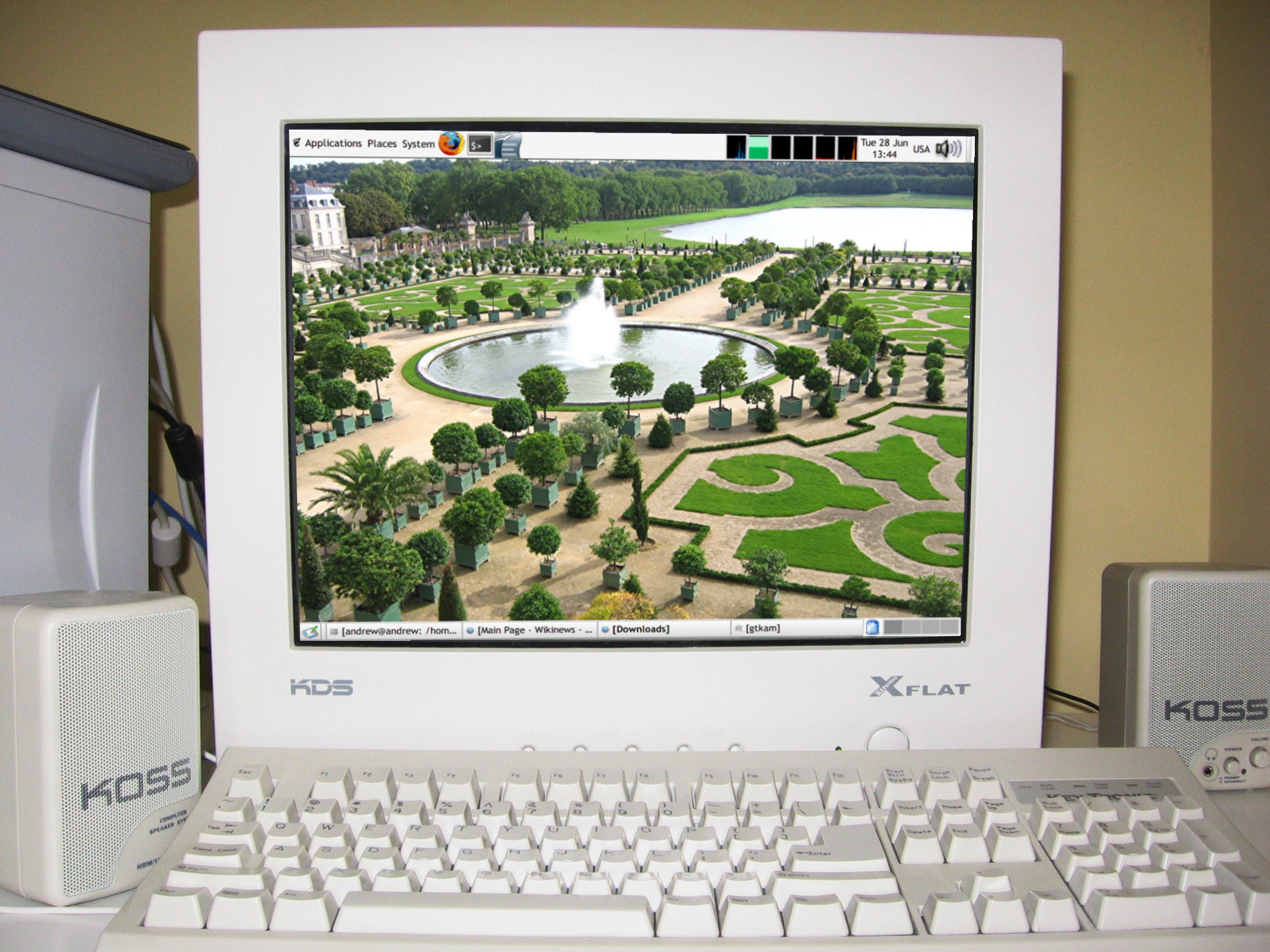
Another output in this picture is the set of speakers, since they convert bits and bytes into sound.
Tomorrow: Keyboard
Subscribe to:
Comments (Atom)